

User Permissions
Skip to main content
How Can We Help?
By default, User – “Admin” has all the Privileges/Permissions set to true.
Initially, login as an “Admin” and then create the new users, If a user is given “Manage User Accounts” permissions, that user will have “Admin” privileges.
To setup permissions please follow the below steps:
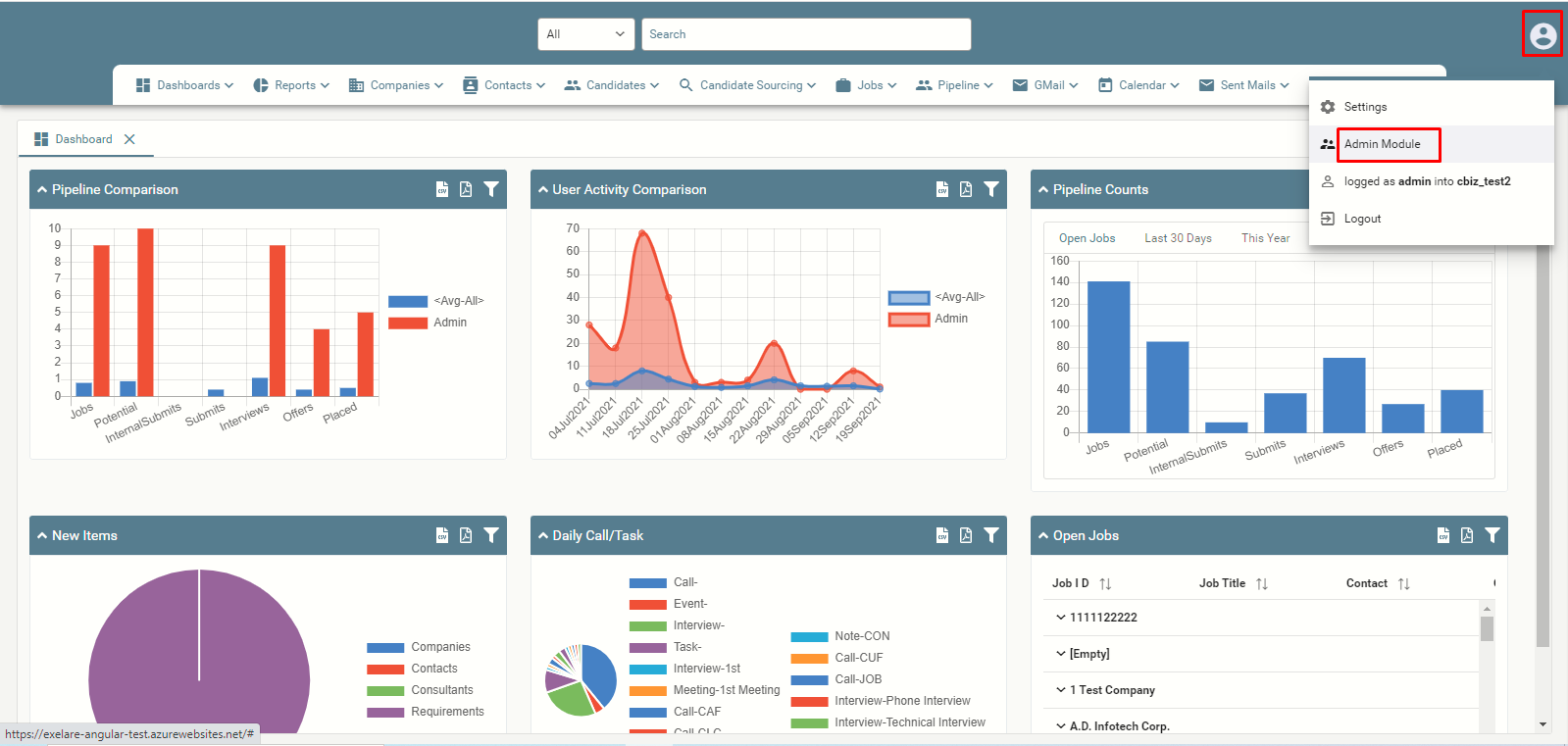
1) Click on Profile icon > Admin Module.
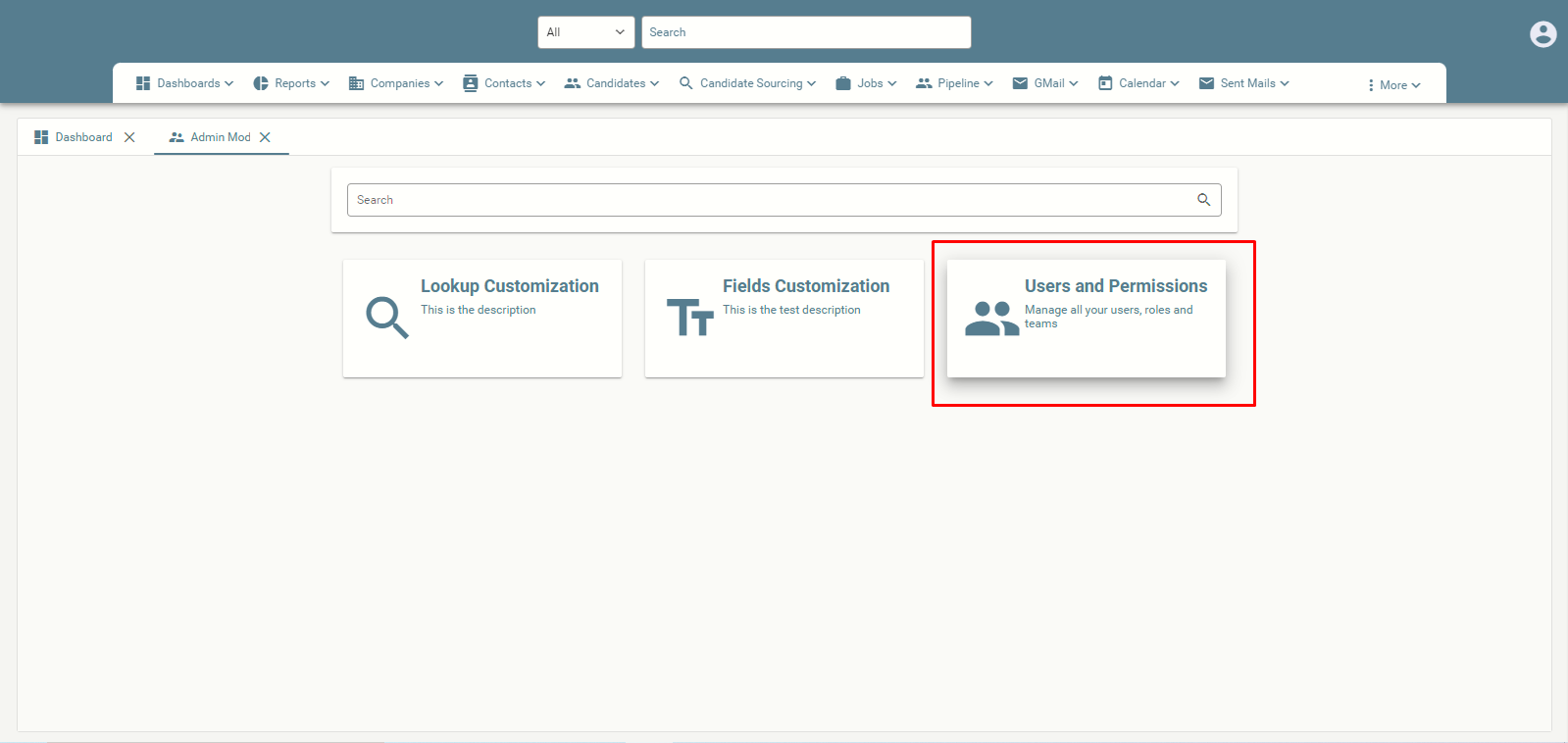
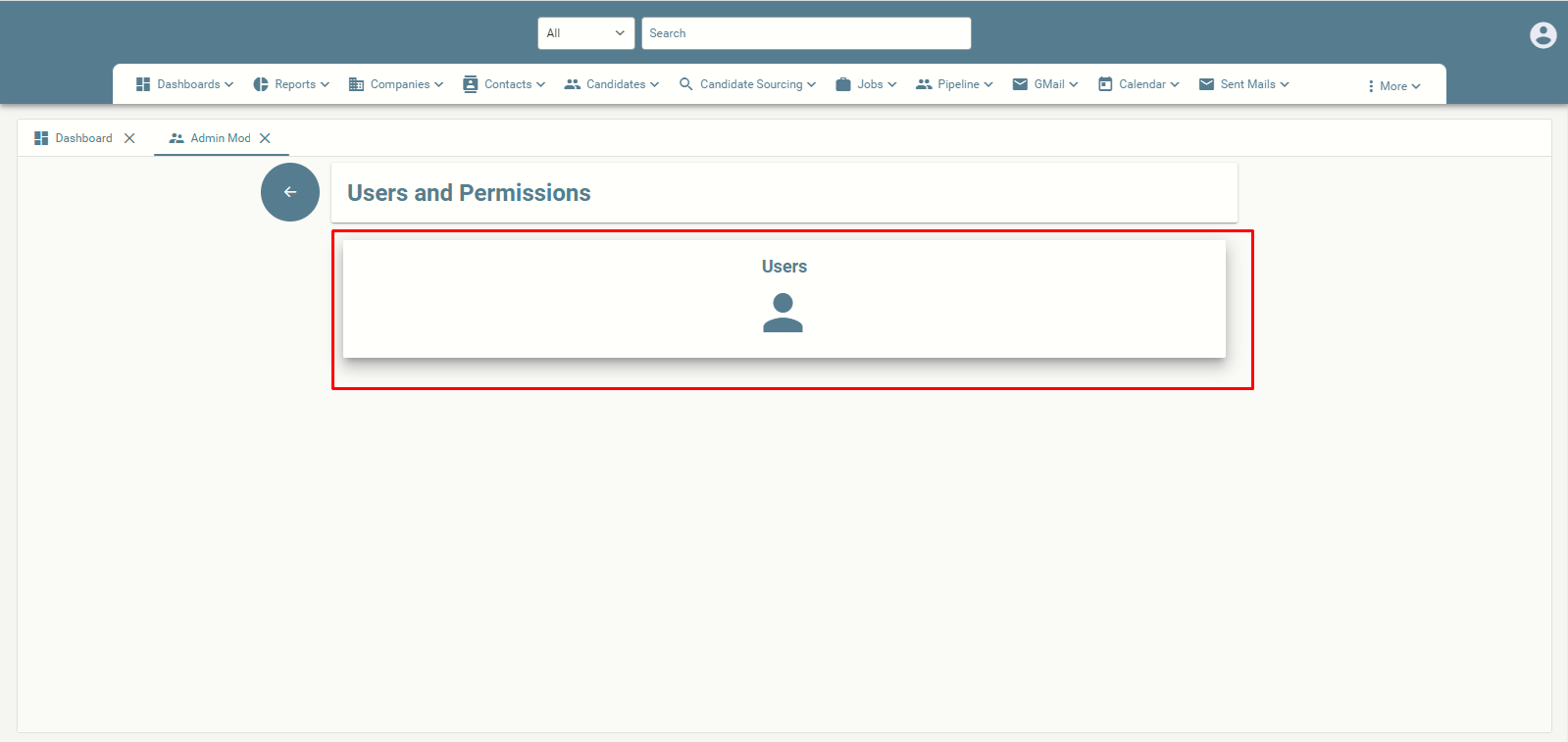
2) Click on Users and Permissions > Users.
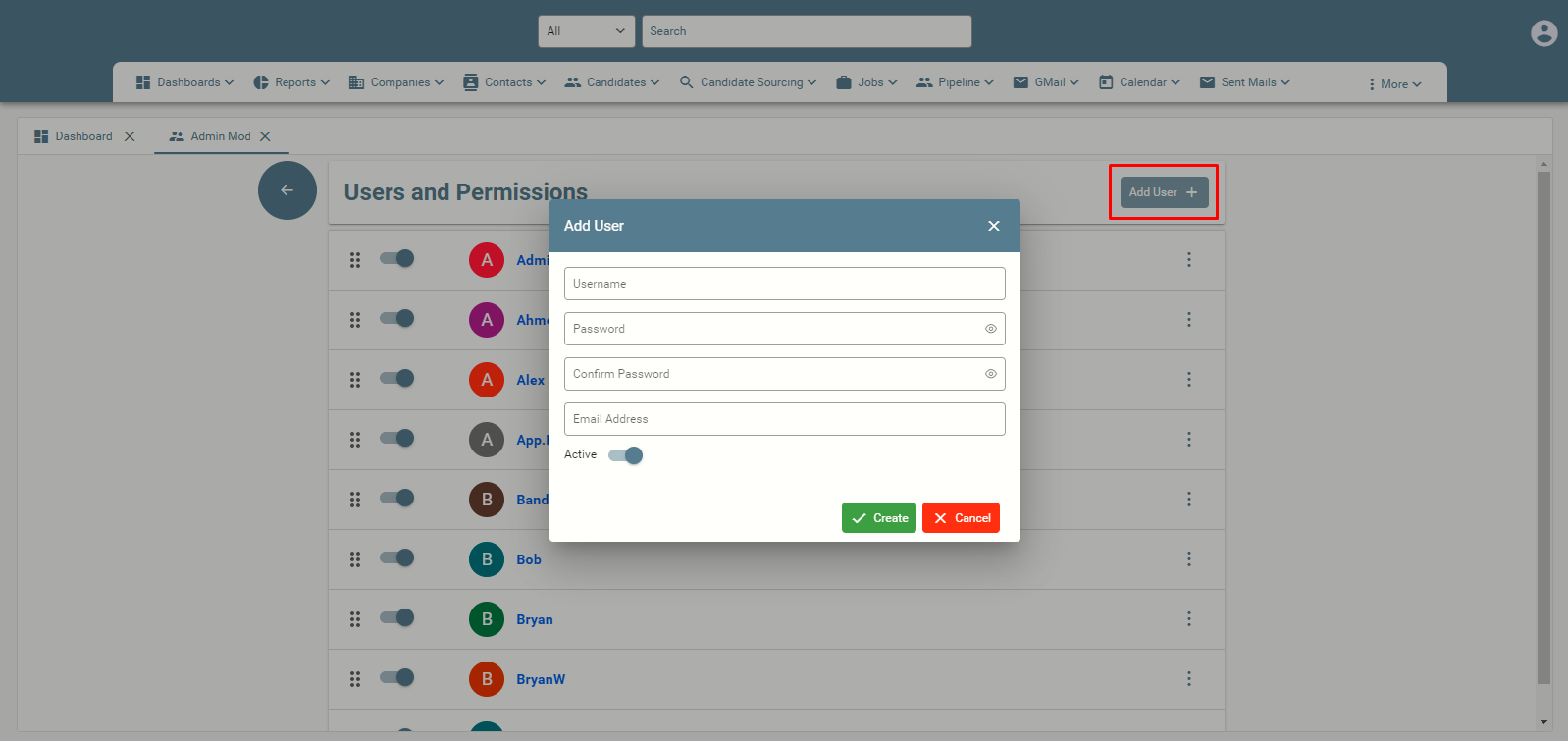
3) Click on Add User and enter the new Username, Password and Email Address of the user.
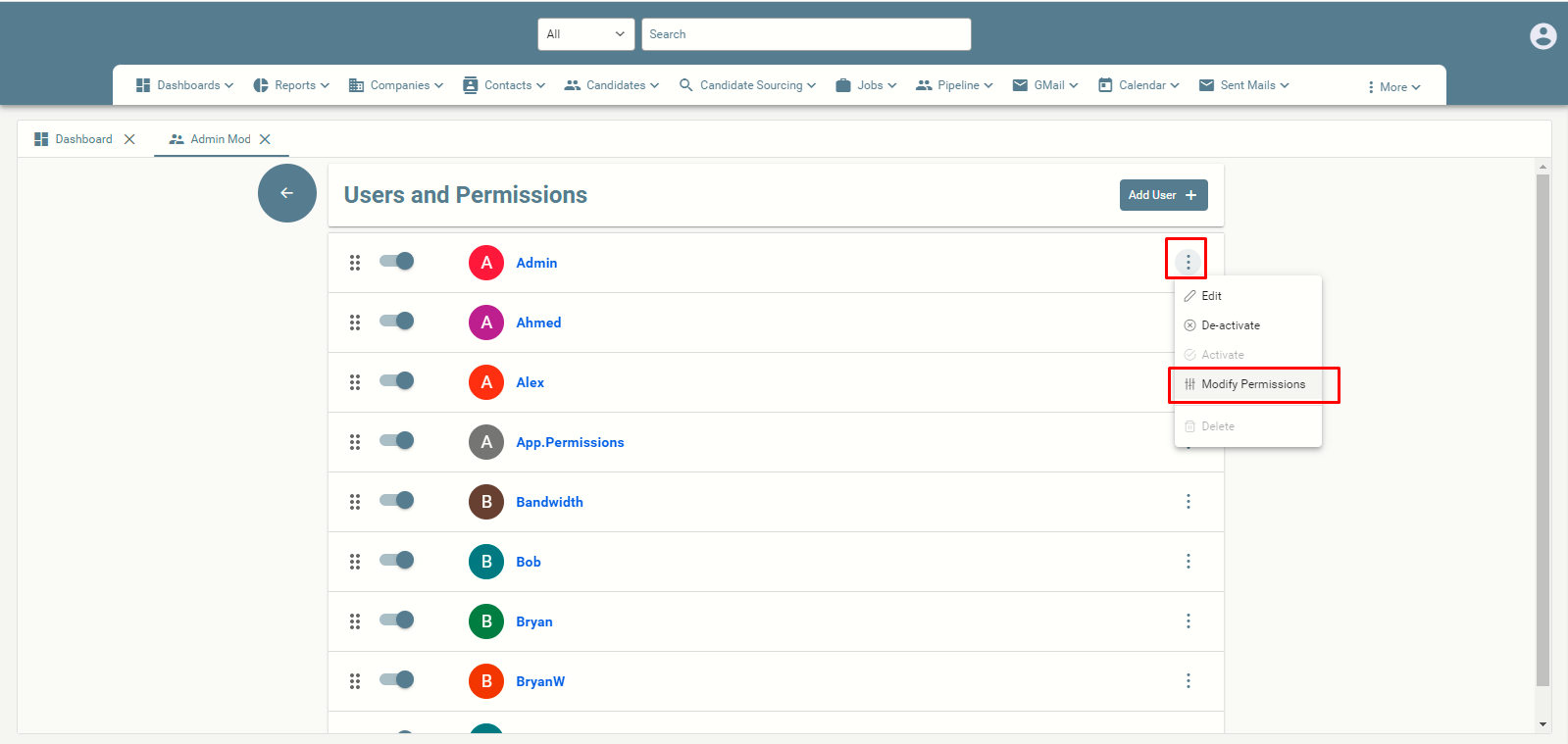
4) Click the 3-dotted ellipse button next to the Username and choose Modify Permissions.
Scroll down for more details.
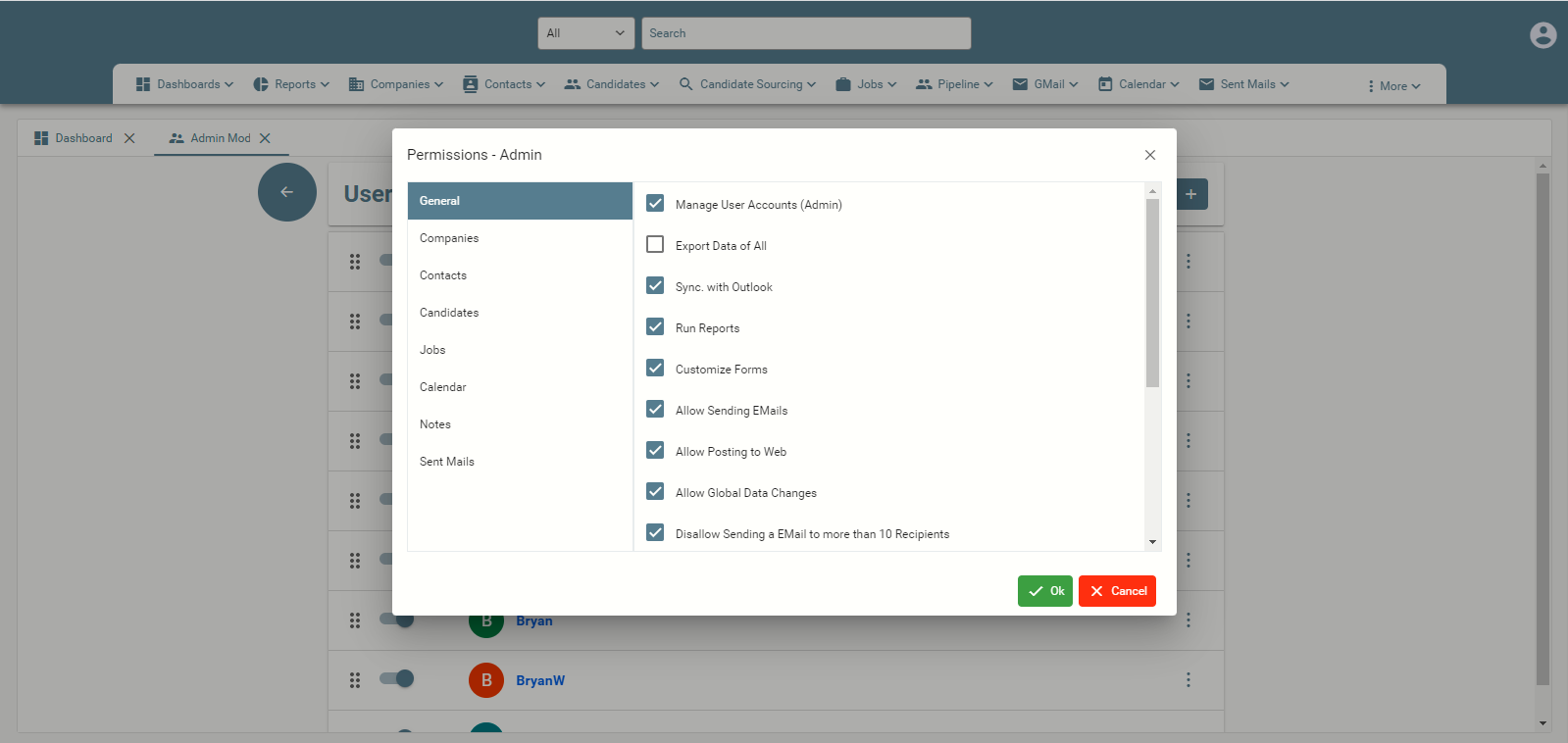
Sections: General, Companies, Contacts, Candidates, Jobs, Calendar, Notes, Sent Mails.
General:
| Manage User Accounts (Admin) | If checked, this user can create, modify and delete users and can manager all user permissions/privileges. |
|---|---|
| Export Data of All | If checked, this user can export all the items of the other users except his userid. |
| Sync. with Outlook | If checked, this user can sync data between Exelare and Outlook. |
| Run Reports | If checked, this user can run reports. |
| Allow Sending EMails | If checked, this user can send emails from Exelare. |
| Allow Posting to Web | ** This feature is yet to be implemented ** |
| Allow Global Data Changes | If checked, this user can modify the data globally in Exelare by using Multi-Edits (Click on the Settings icon – Advanced). |
| Disallow Sending an EMail to more than 10 Recipients | If checked, it will not allow this user to send email to more than 10 recipients. |
| Disallow Sending an EMail to Search List/All in the Current View | If checked, it will not allow this user to send email to candidates in search list or all in the current view. |
| Allow Alert Setup | If checked, this user can setup Alerts (Notifications) for any activity that occurs. |
| Disallow Save Password | If checked, it prevents the user from saving password on login screen. |
| Enable Session Timeout | If checked, this user session will be timed out for 60 minutes of inactivity |
| Cannot See Other Teams’ Users | If checked, this user will not be able to see other team users |
| Export Reports | If checked, this user will be able to export reports to Excel/CSV |
Companies:
| Modify Items of | <All> – This user can modify all Company Items for all users. <Self> – This user can modify Company items belonging to his userid. <None> – This user cannot modify any Company items. <User1, User2> – This users can modify Company items of only selected users. |
|---|---|
| Delete Items of | <All> – This user can delete all companies Items for all users. <Self> – This user can delete companies items belonging to his userid. <None> – This user cannot delete any of the companies items. <User1, User2> – This user can delete companies items of only selected users. |
| Mark as Private When a New Item is Created | If checked, it will create a private company Items automatically for this user whenever a new company Item is created. |
| These Users Can See My Private Items | <All> – Everybody can see this user’s private company Items. <None> – Nobody can see this user’s private company Items. <User1, User2> – Only selected users can see this user’s private company Items. |
| Can See Other Users Private Items | If checked, this user can see other users private company Items. |
| Allow Changing UserID of Other Users Items | If checked, this user can modify the userIds of company Item, i.e. ability to change to a different userid or add additional userids. |
| Create Static Views, Modify/Delete Static Views of | <All> – This user can modify/delete static views belonging to other users. <Self> – This user can modify/delete static views belonging to his userid. <None> – This user cannot modify/delete any static views <User1, User2> – Only selected user’s static views can be modified/deleted by this user. |
| Create MS Excel (Item) | If checked, this user can copy companies list views to Excel spreadsheets. |
| Create MS Excel (Dynamic & Static Views) | If checked, this user can copy companies dynamic views and static views to Excel spreadsheets. |
| Disallow Creating Multiple Items (Bulk Import) | If checked, this user cannot import multiple items using ‘xOne companion app’. |
| Allow Merge Duplicates | If checked, this user can merge duplicate company records. |
Contacts:
| Modify Items of | <All> – This user can modify all Contact Items for all users. <Self> – This user can modify Contact items belonging to his userid. <None> – This user cannot modify any Contact items. <User1, User2> – This users can modify Contact items of only selected users. |
|---|---|
| Delete Items of | <All>- This user can delete all Contact Items for all users. <Self>- This user can delete Contact items belonging to his userid. <None>- This user cannot delete any of the Contact items. <User1, User2>- This user can delete Contact items of only selected users. |
| Mark as Private When a New Item is Created | If checked, it will create a private Contact Item automatically for this user whenever a new Contact Item is created. |
| These Users Can See My Private Items | <All>- Everybody can see this user’s private Contact Items. <None>- Nobody can see this user’s private Contact Items. <User1, User2>- Only selected users can see this user’s private Contact Items. |
| Can See Other Users Private Items | If checked, this user can see other users private Contact Items. |
| Allow Changing UserID of Other Users Items | If checked, this user can modify the userIds of Contact Item, i.e. ability to change to a different userid or add additional userids. |
| Create Static Views, Modify/Delete Static Views of | <All> – This user can modify/delete static views belonging to other users. <Self> – This user can modify/delete static views belonging to his userid. <None> – This user cannot modify/delete any static views <User1, User2> – Only selected user’s static views can be modified/deleted by this user. |
| Create MS Excel (Item) | If checked, this user can copy companies list views to Excel spreadsheets. |
| Create MS Excel (Dynamic & Static Views) | If checked, this user can copy Contacts dynamic views and static views to Excel spreadsheets. |
| Disallow Creating Multiple Items (Bulk Import) | If checked, this user cannot import multiple items using ‘xOne companion app’ |
| Allow Merge Duplicates | If checked, this user can merge duplicate Contact records. |
Candidates:
| Modify Items of | <All> – This user can modify all Candidate Items for all users. <Self> – This user can modify Candidate items belonging to his userid. <None> – This user cannot modify any Candidate items. <User1, User2> – This users can modify Candidate items of only selected users. |
|---|---|
| Delete Items of | <All>- This user can delete all Candidate Items for all users. <Self>- This user can delete Candidate items belonging to his userid. <None>- This user cannot delete any of the Candidate items. <User1, User2>- This user can delete Candidate items of only selected users. |
| Mark as Private When a New Item is Created | If checked, it will create a private Candidate Item automatically for this user whenever a new Candidate Item is created. |
| These Users Can See My Private Items | <All>- Everybody can see this user’s private Candidate Items. <None>- Nobody can see this user’s private Candidate Items. <User1, User2>- Only selected users can see this user’s private CandidateContact Items. |
| Can See Other Users Private Items | If checked, this user can see other users private Candidate Items. |
| Allow Changing UserID of Other Users Items | If checked, this user can modify the userIds of Candidate Item, i.e. ability to change to a different userid or add additional userids. |
| Create Static Views, Modify/Delete Static Views of | <All> – This user can modify/delete static views belonging to other users. <Self> – This user can modify/delete static views belonging to his userid. <None> – This user cannot modify/delete any static views <User1, User2> – Only selected user’s static views can be modified/deleted by this user. |
| Create MS Excel (Item) | If checked, this user can copy Candidate list views to Excel spreadsheets. |
| Create MS Excel (Dynamic & Static Views) | If checked, this user can copy Candidates dynamic views and static views to Excel spreadsheets. |
| Disallow Creating Multiple Items (Bulk Import) | If checked, this user cannot import multiple items using ‘xOne companion app’ |
| Allow Merge Duplicates | If checked, this user can merge duplicate Candidate records. |
Jobs:
| Modify Items of | <All> – This user can modify all Job Items for all users. <Self> – This user can modify Job items belonging to his userid. <None> – This user cannot modify any Job items. <User1, User2> – This users can modify Job items of only selected users. |
|---|---|
| Delete Items of | <All>- This user can delete all Job Items for all users. <Self>- This user can delete Job items belonging to his userid. <None>- This user cannot delete any of the Job items. <User1, User2>- This user can delete Job items of only selected users. |
| Mark as Private When a New Item is Created | If checked, it will create a private Job Item automatically for this user whenever a new Job Item is created. |
| These Users Can See My Private Items | <All>- Everybody can see this user’s private Job Items. <None>- Nobody can see this user’s private Job Items. <User1, User2>- Only selected users can see this user’s private Job Items. |
| Can See Other Users Private Items | If checked, this user can see other users private Job Items. |
| Allow Changing UserID of Other Users Items | If checked, this user can modify the userIds of Job Item, i.e. ability to change to a different userid or add additional userids. |
| Create Static Views, Modify/Delete Static Views of | <All> – This user can modify/delete static views belonging to other users. <Self> – This user can modify/delete static views belonging to his userid. <None> – This user cannot modify/delete any static views <User1, User2> – Only selected user’s static views can be modified/deleted by this user. |
| Create MS Excel (Item) | If checked, this user can copy Job list views to Excel spreadsheets. |
| Create MS Excel (Dynamic & Static Views) | If checked, this user can copy Jobs dynamic views and static views to Excel spreadsheets. |
| Disallow Creating Multiple Items (Bulk Import) | If checked, this user cannot import multiple items using ‘xOne companion app’ |
| Allow Merge Duplicates | If checked, this user can merge duplicate Job records. |
Calendar:
| Modify Items of | <All> – This user can modify all Calendar Items for all users. <Self> – This user can modify Calendar items belonging to his userid. <None> – This user cannot modify any Calendar items. <User1, User2> – This users can modify Calendar items of only selected users. |
|---|---|
| Delete Items of | <All>- This user can delete all Calendar Items for all users. <Self>- This user can delete Calendar items belonging to his userid. <None>- This user cannot delete any of the Calendar items. <User1, User2>- This user can delete Calendar items of only selected users. |
| Mark as Private When a New Item is Created | If checked, it will create a private Calendar Item automatically for this user whenever a new Calendar Item is created. |
| These Users Can See My Private Items | <All>- Everybody can see this user’s private Calendar Items. <None>- Nobody can see this user’s private Calendar Items. <User1, User2>- Only selected users can see this user’s private Calendar Items. |
| Can See Other Users Private Items | If checked, this user can see other users private Calendar Items. |
| Allow Changing UserID of Other Users Items | If checked, this user can modify the userIds of Calendar Item, i.e. ability to change to a different userid or add additional userids. |
| Create Static Views, Modify/Delete Static Views of | <All> – This user can modify/delete static views belonging to other users. <Self> – This user can modify/delete static views belonging to his userid. <None> – This user cannot modify/delete any static views <User1, User2> – Only selected user’s static views can be modified/deleted by this user. |
| Create MS Excel (Item) | If checked, this user can copy Calendar list views to Excel spreadsheets. |
| Create MS Excel (Dynamic & Static Views) | If checked, this user can copy Calendar dynamic views and static views to Excel spreadsheets. |
| Disallow Creating Multiple Items (Bulk Import) | If checked, this user cannot import multiple items using ‘xOne companion app’ |
| Allow Merge Duplicates | If checked, this user can merge duplicate note records. |
Notes:
| Modify Items of | <All> – This user can modify all note Items for all users. <Self> – This user can modify note items belonging to his userid. <None> – This user cannot modify any note items. <User1, User2> – This users can modify note items of only selected users. |
|---|---|
| Delete Items of | <All>- This user can delete all note Items for all users. <Self>- This user can delete note items belonging to his userid. <None>- This user cannot delete any of the note items. <User1, User2>- This user can delete note items of only selected users. |
| Mark as Private When a New Item is Created | If checked, it will create a private note Item automatically for this user whenever a new note Item is created. |
| These Users Can See My Private Items | <All>- Everybody can see this user’s private note Items. <None>- Nobody can see this user’s private note Items. <User1, User2>- Only selected users can see this user’s private note Items. |
| Can See Other Users Private Items | If checked, this user can see other users private note Items. |
| Allow Changing UserID of Other Users Items | If checked, this user can modify the userIds of note Item, i.e. ability to change to a different userid or add additional userids. |
| Create Static Views, Modify/Delete Static Views of | <All> – This user can modify/delete static views belonging to other users. <Self> – This user can modify/delete static views belonging to his userid. <None> – This user cannot modify/delete any static views <User1, User2> – Only selected user’s static views can be modified/deleted by this user. |
| Create MS Excel (Item) | If checked, this user can copy note list views to Excel spreadsheets. |
| Create MS Excel (Dynamic & Static Views) | If checked, this user can copy note dynamic views and static views to Excel spreadsheets. |
| Disallow Creating Multiple Items (Bulk Import) | If checked, this user cannot import multiple items using ‘xOne companion app’ |
| Allow Merge Duplicates | If checked, this user can merge duplicate note records. |
Sent Mails:
| Modify Items of | <All> – This user can modify all sent mails Items for all users. <Self> – This user can modify sent mails items belonging to his userid. <None> – This user cannot modify any sent mails items. <User1, User2> – This users can modify sent mails items of only selected users. |
|---|---|
| Delete Items of | <All>- This user can delete all sent mails Items for all users. <Self>- This user can delete sent mails items belonging to his userid. <None>- This user cannot delete any of the sent mails items. <User1, User2>- This user can delete sent mails items of only selected users. |
| Mark as Private When a New Item is Created | If checked, it will create a private sent mails Item automatically for this user whenever a new sent mails Item is created. |
| These Users Can See My Private Items | <All>- Everybody can see this user’s private sent mails Items. <None>- Nobody can see this user’s private sent mails Items. <User1, User2>- Only selected users can see this user’s private sent mails Items. |
| Can See Other Users Private Items | If checked, this user can see other users private sent mails Items. |
| Allow Changing UserID of Other Users Items | If checked, this user can modify the userIds of sent mails Item, i.e. ability to change to a different userid or add additional userids. |
| Create Static Views, Modify/Delete Static Views of | <All> – This user can modify/delete static views belonging to other users. <Self> – This user can modify/delete static views belonging to his userid. <None> – This user cannot modify/delete any static views <User1, User2> – Only selected user’s static views can be modified/deleted by this user. |
| Create MS Excel (Item) | If checked, this user can copy sent mails list views to Excel spreadsheets. |
| Create MS Excel (Dynamic & Static Views) | If checked, this user can copy sent mails dynamic views and static views to Excel spreadsheets. |
| Disallow Creating Multiple Items (Bulk Import) | If checked, this user cannot import multiple items using ‘xOne companion app’ |
| Allow Merge Duplicates | If checked, this user can merge duplicate sent mails records. |