Installing the LinkedIn Chrome Extension “Exelare LinkedIn Integration”
To install the LinkedIn Chrome Extension, please follow these steps:
- Open up your Chrome browser on any PC.
- Please click on the below link or “Copy & Paste” it to your Chrome address bar.
https://chrome.google.com/webstore/detail/exelare-extension/pfdclcliiindobkbaggccghcdegjjjig - A “Exelare LinkedIn Integration” pop-up appears with a blue button on the right top “+ ADD TO CHROME”
 .
. - Click on the “+ ADD TO CHROME
 and click on “Add extension
 button on the small pop-up window.
 - Now you should see a small icon
 beside the other chrome extensions(if you have any) with a message box saying “Exelare LinkedIn Integration has been added to Chrome.
 - A new Exelare icon
 will be installed in the top right hand corner of your browser window.
 - Click on the Exelare icon
 . A new small window will open, allowing you to enter your Exelare login credentials (the same info you use to login to Exelare)
 - Enter your Exelare login credentials and hit “Submit“
 button at the bottom.
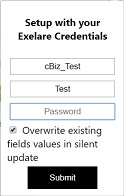
Now click on anywhere on the chrome browser, so that the login window disappears.
Now you are logged in into your “Exelare LinkedIn Integration” extension.
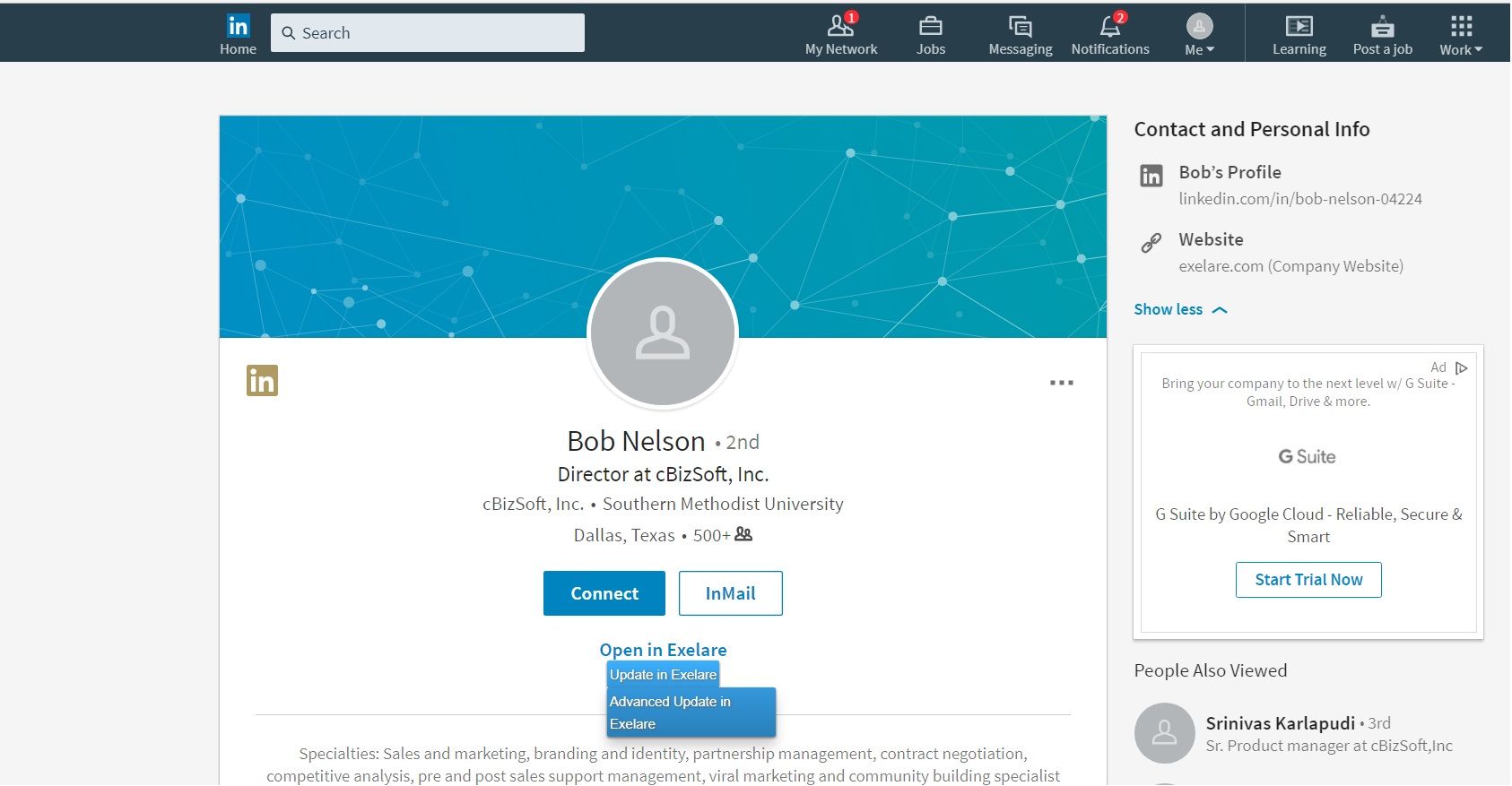
- Start using the Exelare LinkedIn Extension for Chrome. Please see the screen shots below on how to use the LinkedIn Chrome Extension.

There are two options while adding a Candidate profile with the “Exelare LinkedIn Integration“.
1. Import to Exelare ( with just one click the LinkedIn Profile whom you searched for gets added to your Exelare database).
2. Advanced Import to Exelare ( with this option user has an ability to edit/change the details while the Candidate profile gets imported through a import wizard).Below screen shot shows “Advanced Import to Exelare“.
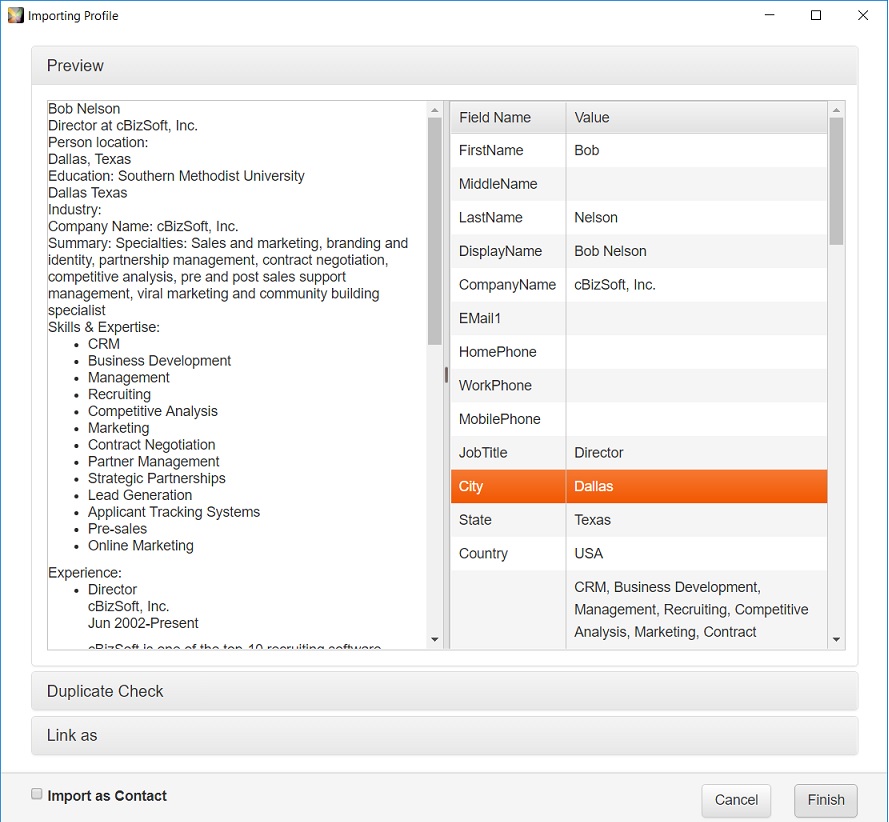
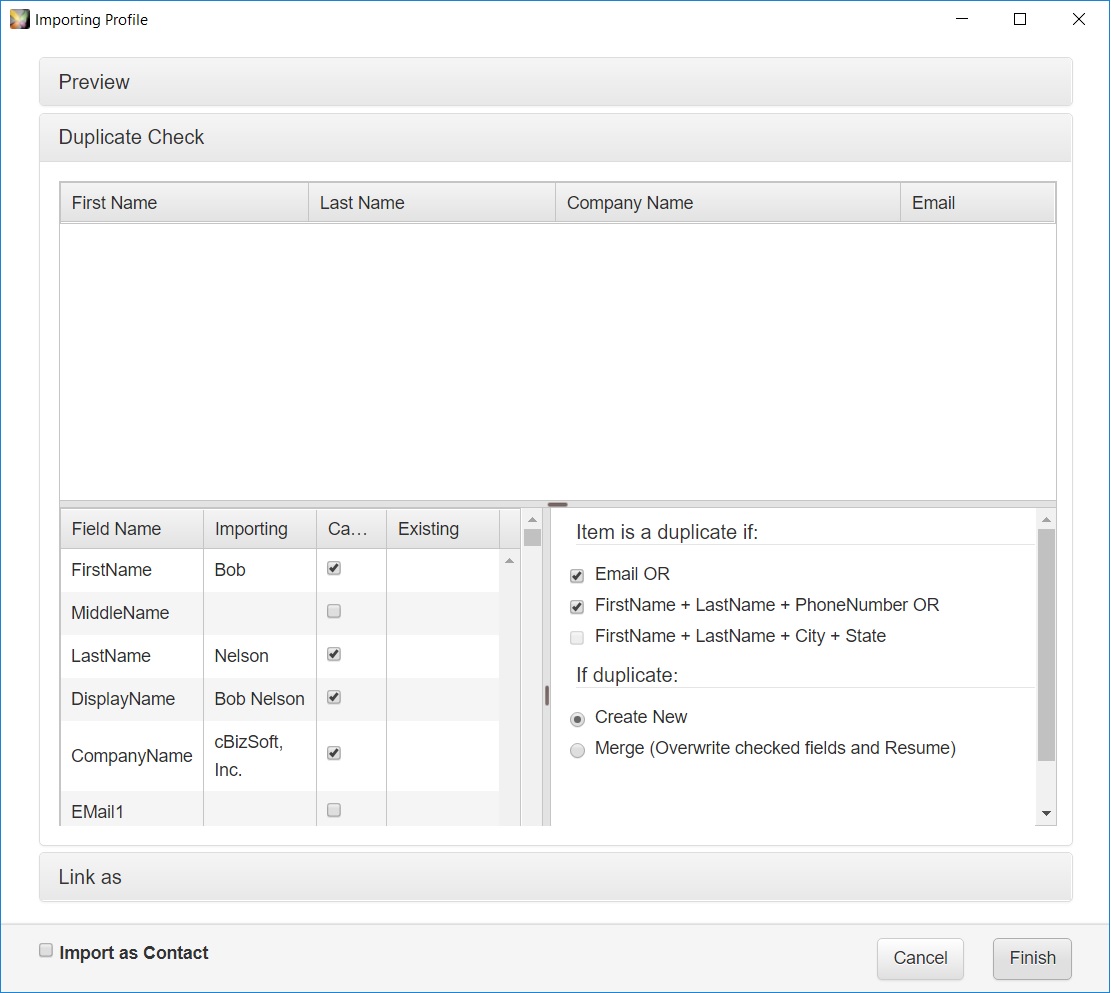
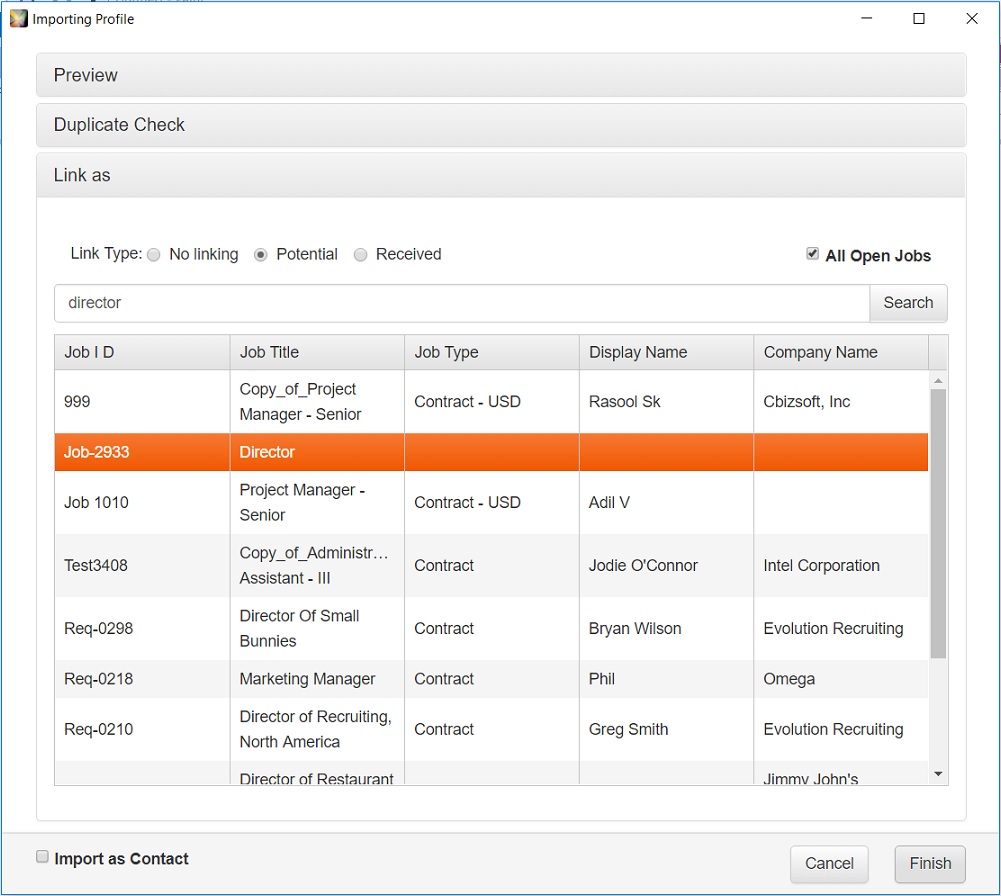 Please click “Finish” button and Exelare will parse as much information as it can from the Candidate profile page. Feel free to make changes in the fields if necessary.
Click “Finish“. A new candidate will be added if the Candidate is not in the database. If it is a duplicate(Candidate already added), the Candidate will be merged to the existing Candidate record.
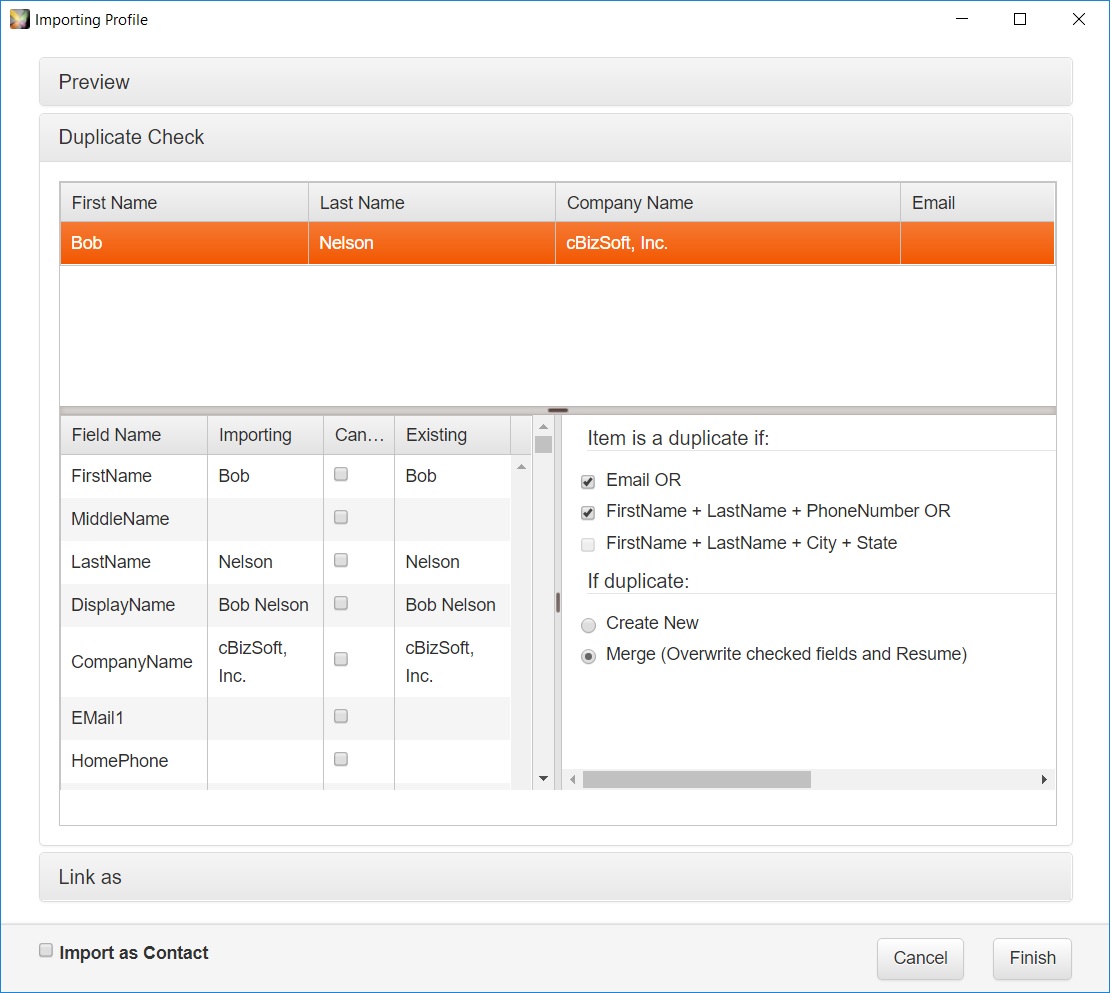 Below is the Candidate profile imported from LinkedIn using our new “Exelare LinkedIn Integration” chrome extension.
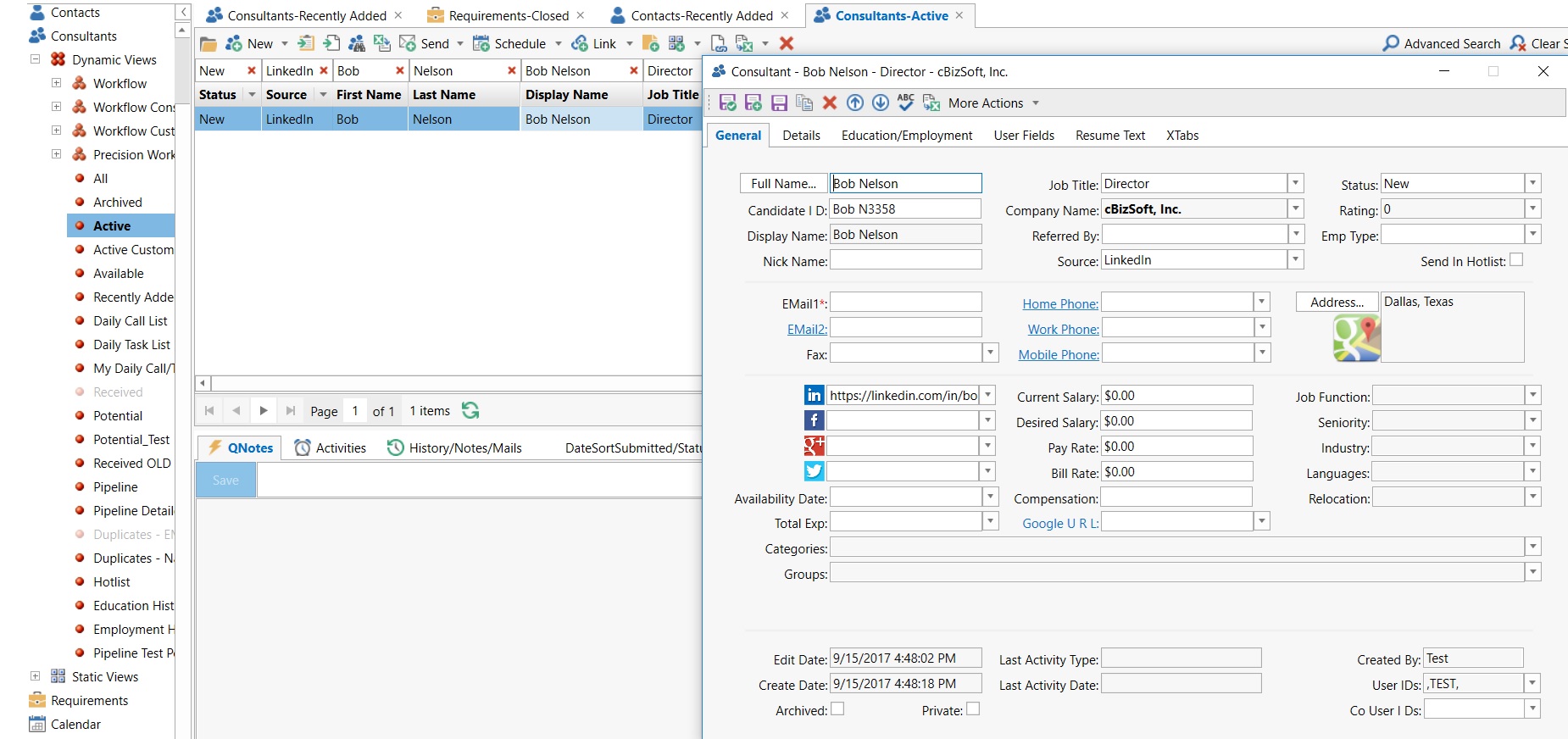
NOTE: By default Exelare would import a LinkedIn Profile as Candidate. Please check the box for “Import as Contact”, if you wish to import a Contact from LinkedIn.
Once you import the LinkedIn profile, the “blue” button on the LinkedIn profile page for this Candidate. It shows “Open in Exelare” & “Update in Exelare” & “Advanced update in Exelare”.