Additional techniques – Live Search Bar
To narrow the scope of your search in Exelare you
can use the following special sets of predefined words, called operators, to
join together your search terms: – Boolean operators
– Truncation and
wildcard operators
– Exact operators****
Boolean
Operators
Exelare allows you to combine your search terms so you
can target your search at more specific areas. For example, from the Basic Search page you can list the data in Exelare which contain the words Marketing
and Product.
You combine your search terms using the following special
keywords, called Boolean operators:
- AND => ; (semi-colon)
- OR => , (comma)
AND
The AND operator retrieves all data
that contain the search terms it separates. However, this type of search
normally retrieves fewer results than if you searched for one of the terms on
its own. If you have entered search terms in more than one search box, Exelare treats them as if
they were combined using the AND operator.
Note: that if you
want to search for the word ‘and’ in a phrase, such as ‘Marketing and Product‘, you should type the phrase into the search box and
enclose it in semi-colon; for example, “Marketing; Product“.
The Search Results will be displayed, listing all data containing the
words ‘Marketing‘ and ‘Product‘.
Search Results
The Search Results
displays the results of your search. 100 results per page are displayed (you
can change this in Settings – User
Options). Additional matches can be accesses using the “Page(s): 1 | 2
| 3” navigation.
To search for “Marketing andProduct“,
- In Exelare, click the
drop-down next to the field (Ex: Other Skills) - At the
bottom of the popup window, choose “Starts With” and “All Of These” under
Filters. - Check the
lookup values (Ex: Marketing and Product) - Click on
OK.
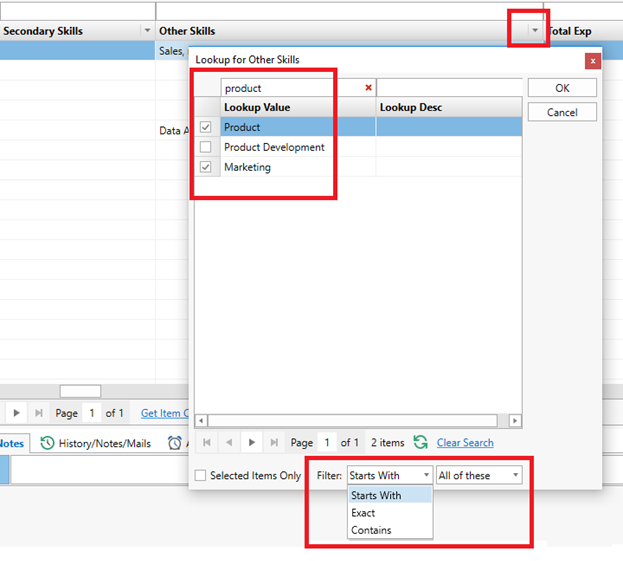
Results:

OR
The OR operator retrieves all data
that contain any or all of the search terms it separates. This type of search
retrieves more results than if you searched for one of the terms on its own.
Note: that if you
want to search for the word ‘or’ in a phrase, such as ‘Marketing or Product‘, you should type the phrase into the search box and
enclose it in comma; for example, “Marketing, Product“.
The Search Results page will
be displayed, listing all data containing any or all of the words ‘Marketing‘ or ‘Product‘.
Search Results
The Search Results
displays the results of your search. 100 results per page are displayed (you
can change this in Settings – User
Options). Additional matches can be accesses using the “Page(s): 1 | 2
| 3” navigation.
To search for “Marketing or Product“,
- In Exelare, click the
drop-down next to the field (Ex: Other Skills) - At the
bottom of the popup window, choose “Starts With” and “Any Of These” under
Filters. - Check the
lookup values (Ex: Marketing and Product) - Click on
OK.
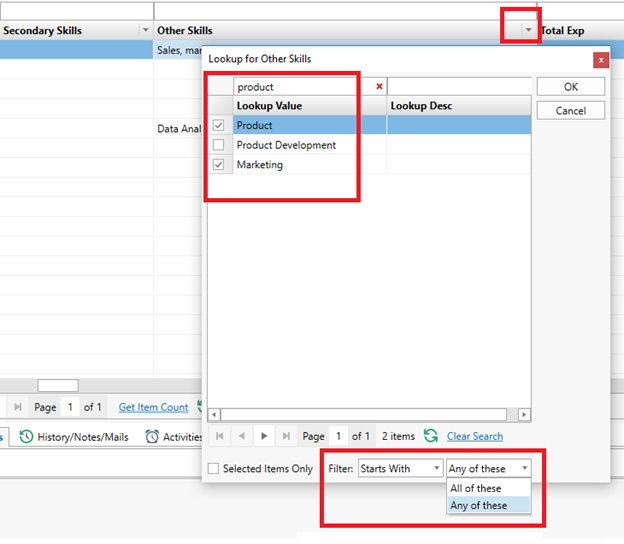
Results:
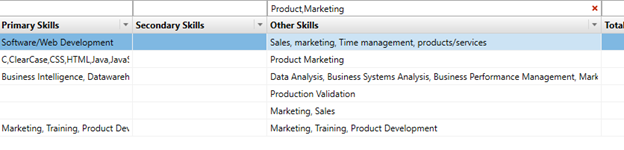
Nesting Operators
If
you use more than one Boolean Operator in the same search statement, you will
need to group your keywords with multiple operators. This is called nesting.
You can combine both operators AND, OR operators. Simply type
the keywords separated by an Operator(s) in the Live Search Bar to see the
results.
Ex: To Search for,
1) Skill1
AND (Skill2 OR Skill3)
Simply type Skill1;Skill2,Skill3
2) (Skill1
OR Skill2) AND Skill3
Simply type Skill1,Skill2;Skill3
3) (Skill1
OR Skill2) AND (Skill3 OR Skill4)
Simply type Skill1,Skill2;Skill3,Skill4
Truncation and
wildcard operators
To locate a specific item when you can’t
remember exactly how it is spelled, try using a wildcard character in the
search.
Wildcards are special characters that can
stand in for unknown characters in a text value and are handy for locating
multiple items with similar, but not identical data. Wildcards can also help
with getting data based on a specified pattern match.
Use more specific search terms to get more relevant results. For
example, to find all occurrences of Prospect,
including the plural prospects, use “prospect” (without quotes).
Using a partial term like “prosp” (without quotes) could return
unintended matches, like matches for “prosperity”, “Prospects” etc.
Exelare supports several wildcards. However, below are the
2 major wildcards.
- Use
an asterisk (*) to find items that match zero or more characters. This wildcard character can be used as either a prefix or a
suffix. - Use an
underscore mark (_) to find items that match only one character at the Start,
Middle or end of your keyword.
Truncation
Use
the truncation symbols to create searches where you want to retrieve all
variants of a word stem. The most commonly used truncation symbol is the
asterisk (*). For example, a search for
Examples
Educat*
Will
retrieve: educate, educating, education, educational, educator, educators, etc.
Technology*
Will retrieve entries for all records containing the words: Technology, Technology Lead, Technology
Consultant, Technology Architect,
Technology Analyst, etc.
Wildcards
A
wildcard symbol is used within a word to provide for all possible spellings or
variations inside a word or word stem. The most commonly used wildcard symbols
for internal truncation is the underscore mark (_). For example, a search for wom_n will retrieve: woman and women.
| Truncation/Wildcard | Example/Syntax | Finds |
| * (one or more) | comput* | computer, computing, compute, etc… |
| _ (exactly one) | Ne_t | neat, next, nest, newt, etc… |
| [] – Any single character within the specified range ([a-f]) or set ([abcdef]) | [A-C] | Any word starts with A, B or C |
| d[eo]ll | Doll or Dell | |
| [C-P]arsen | Carsen, Larsen, Karsen, and so on | |
| [a-cdf] | Any word starts with a, b, c, d, or f | |
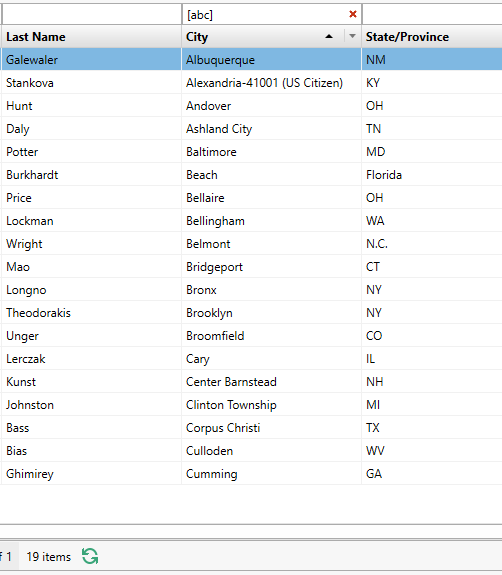
| [abc] | Any word starts with a, b or c | |
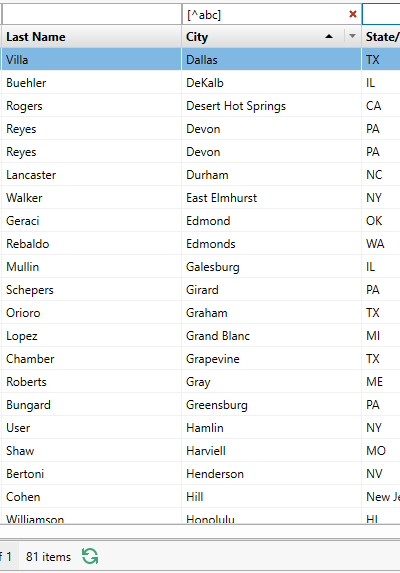
| [^] – Any single character not within the specified range ([^a-f]) or set ([^abcdef]). | [^abc] | Any word that do not start with a, b or c |
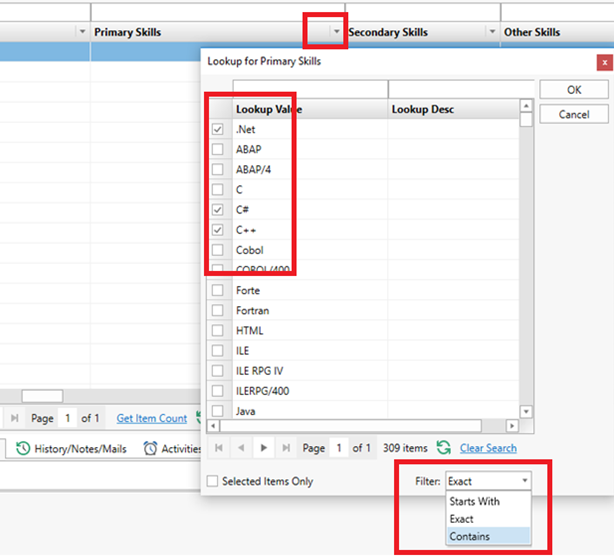
To
search using Truncation in Exelare:
- In Exelare, click the
drop-down next to the field (Ex: Primary Skills) - At the
bottom of the popup window, choose “Contains” under Filters. - Check the
lookup values (Ex: .Net, C# and C++) - Click on
OK.
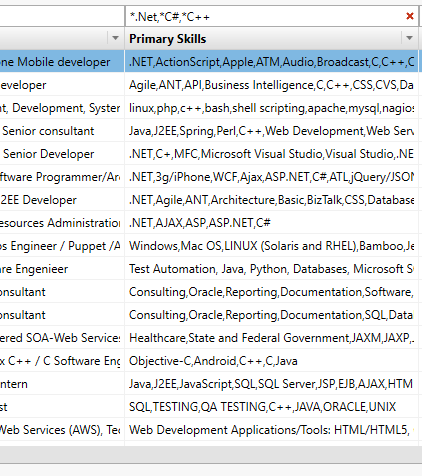
Results:
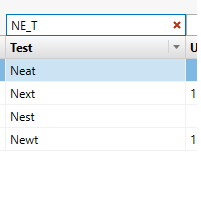
To
Search in any field using _ (underscore): (Wildcard)
Ex: NE_T
Will bring you the results like Neat, Next, Nest, Newt etc.
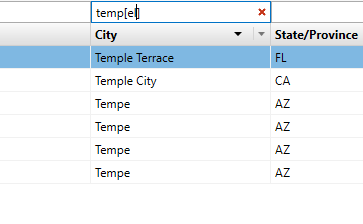
To
Search for City either Tempe, Temple Terrace or Temple City: Search by “temp[el]” (without quotes)
To
Search for all records that has City starts with a, b or c:
To
search for all records that has City name do not start with a, b or c: