

Basic Live Search – using GUI
Based on customers feedback, while doing live search we now added several filters in the lookup window.
This below article explains you different ways to search the data in Exelare Live
Search Bar with operators using GUI.
All of these: Searches for data
that just contains the words you selected without being the exact phrase. You
can select (i.e., check) as many keywords as you want.
Any of these: Useful when
searching multiple keywords. For example, you can find records that contain the
word Product, Marketing or Java Developer.
Starts With: Searches for data
that starts with the word you selected.
Exact: Shows only records
with exact phrases that you selected (Ex: =SQL Server)
Contains: Searches for data
that has the word anywhere in the field. It behaves kind of like a wild card.
(Ex: *Product)
1) Let’s say you want to
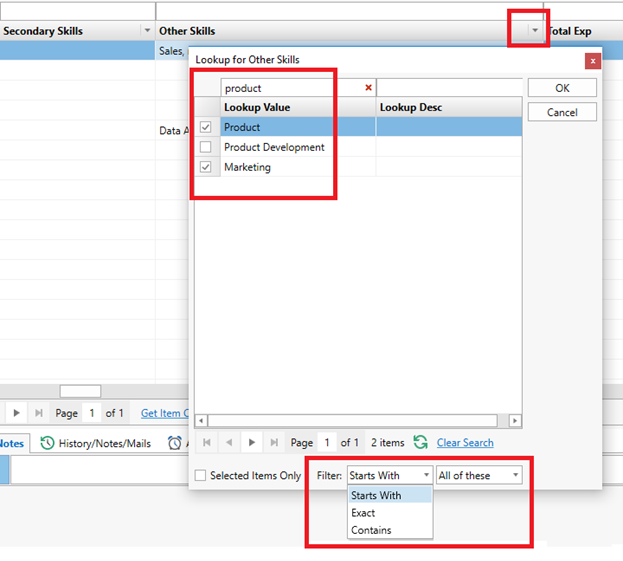
search for “Product” and “Marketing” in “Other Skills” field. You can use the operators “Starts
With” – “All of these”.
To search
for “Marketingand Product“,
- In
Exelare, on the live search bar click the drop-down next to the field (Ex: Other Skills) - At
the bottom of the popup window, choose “Starts
With” and “All of these” under Filters. - Check
the lookup values (Ex: Marketing and Product) - Click on OK.
Results:

2) If you want to search
for either of the keywords in a particular field. Ex: “Product”
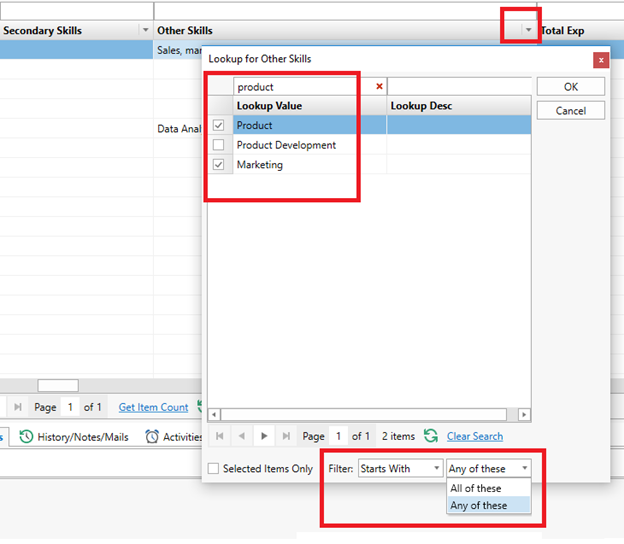
or “Marketing” or both. You can use the operators “Starts
With” – “Any of these”.
To search for “Marketingor Product“,
- In
Exelare, click the drop-down next to the field (Ex: Other Skills) - At the bottom of the popup window, choose “Starts With” and “Any of
these” under Filters. - Check the lookup values (Ex: Marketing and Product)
- Click on OK.
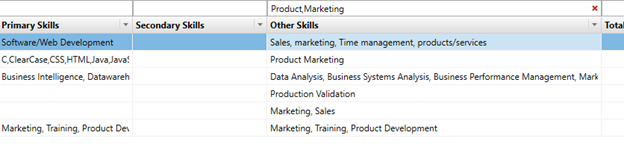
Results:
3) Exact
operatorThe EXACT operator can be used to retrieve records that match your
search term precisely.
For example: To search for EXACT keyword “Technology”. Choose the operator “Exact” in the Filters. This
search will return results which have “Technology” in the field, but
will exclude data
that feature this phrase as part of a longer entry, such as “Technology Lead” or “Technology Consultant” etc.
To search for EXACT
word in Exelare:
- In
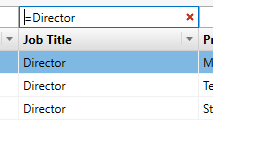
Exelare, click the drop-down next to the field (Ex: JobTitle) - At the bottom of the popup window, choose “Exact” under Filters.
- Check the lookup values (Ex: Director)
- Click on OK.
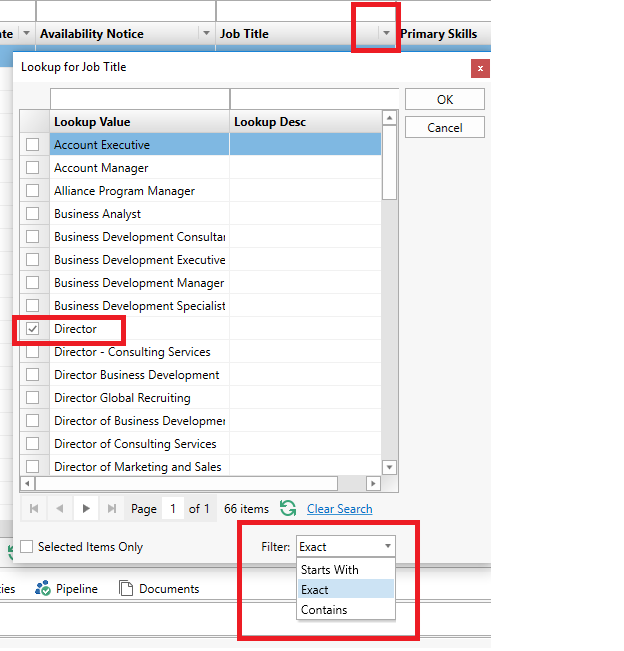
Results: This
does not show the records where job title like Director – Consulting Services,
Director Global Recruiting etc.
4) Truncation/Wildcard:Use
the truncation symbols to create searches where you want to retrieve all
variants of a word stem. The most commonly used truncation symbol is the
asterisk (*). For example, a search for
ExamplesEducat*Will
retrieve: educate, educating, education, educational, educator, educators, etc.
Technology
Will retrieve entries for all records containing the words: Technology, Technology Lead, Technology
Consultant, Technology Architect,
Technology Analyst*, etc.
Let’s
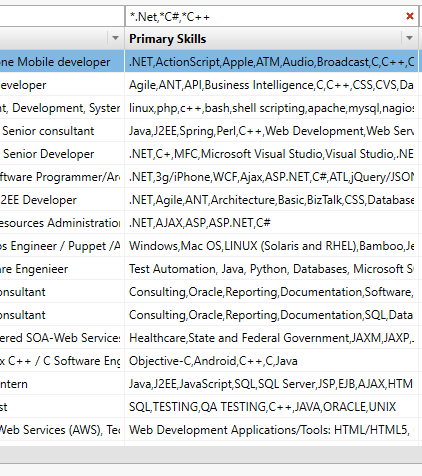
say you want to search for candidates who has the keyword either “.net” or “C#”
or “C++” anywhere in the field. You can choose the operator “Contains” that
behaves like a wildcard.
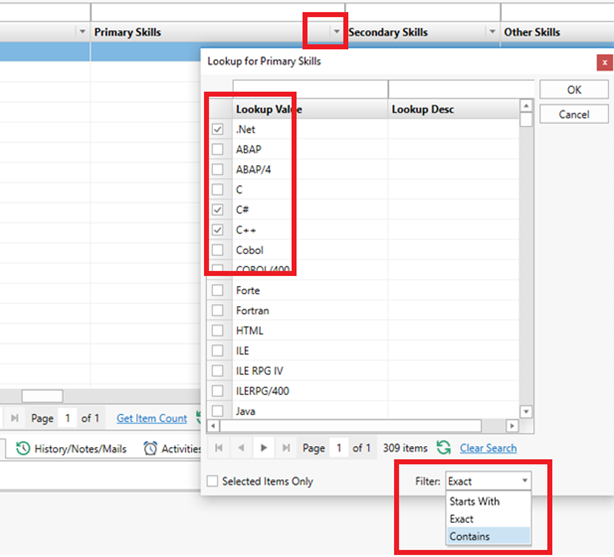
To search using Contains
in Exelare:
- In
Exelare, click the drop-down next to the field (Ex: Primary Skills) - At the bottom of the popup window, choose “Contains” under Filters.
- Check the lookup values (Ex: .Net, C# and C++)
- Click on OK.
Results:
Please refer to the tutorial link: Additional techniques – in Live Search Bar